Going live
How to Schedule a YouTube Live Stream and Share the Link in Advance
Create a scheduled event, copy the YouTube watch link to share and open the same stream when it is time to go live.
Going live · 2 min read
Rehearse with an Unlisted or Private event, check picture, sound and delay, then end the stream and create the real one.
To test a YouTube live stream without making it public, create the event as Unlisted or Private, and share the link only with the people who help you test. A rehearsal uses the same studio and a real YouTube event, so it shows you what viewers will see and hear.
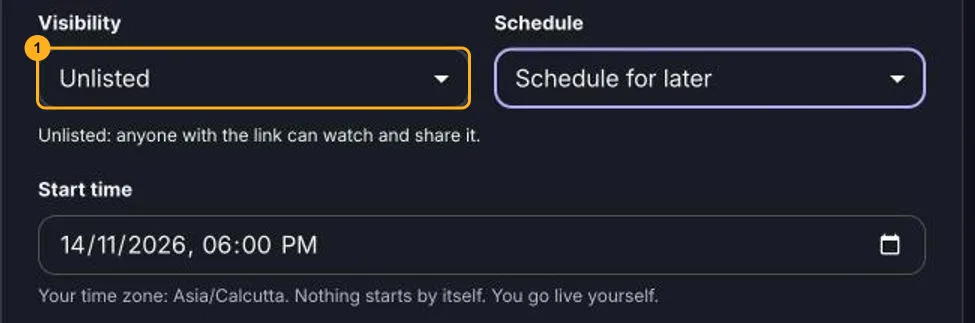
When you tick Set up on YouTube, Visibility offers three choices.
For a rehearsal with a helper, choose Unlisted. Choose Private when you want to watch alone. Remember that anyone who has an Unlisted link can pass it on, so do not post it.
Choose End stream when you finish. A rehearsal does not use up the real show. Create a new stream, or schedule one, for the real event.
Going live
Create a scheduled event, copy the YouTube watch link to share and open the same stream when it is time to go live.
Going live
Connect your channel, invite guests with one link and go live on YouTube from the browser. No guest accounts, no downloads and no watermark on the Free plan.
Going live
Share a tab, window or screen, turn on screen audio and avoid echo. Fix the common case where viewers hear nothing from the share.