Going live
How to Share Your Screen With Sound on a YouTube Live Stream
Share a tab, window or screen, turn on screen audio and avoid echo. Fix the common case where viewers hear nothing from the share.
Fixing problems · 2 min read
Find which microphone is picking up the loop, then fix it with headphones, one device per room and the right share settings.
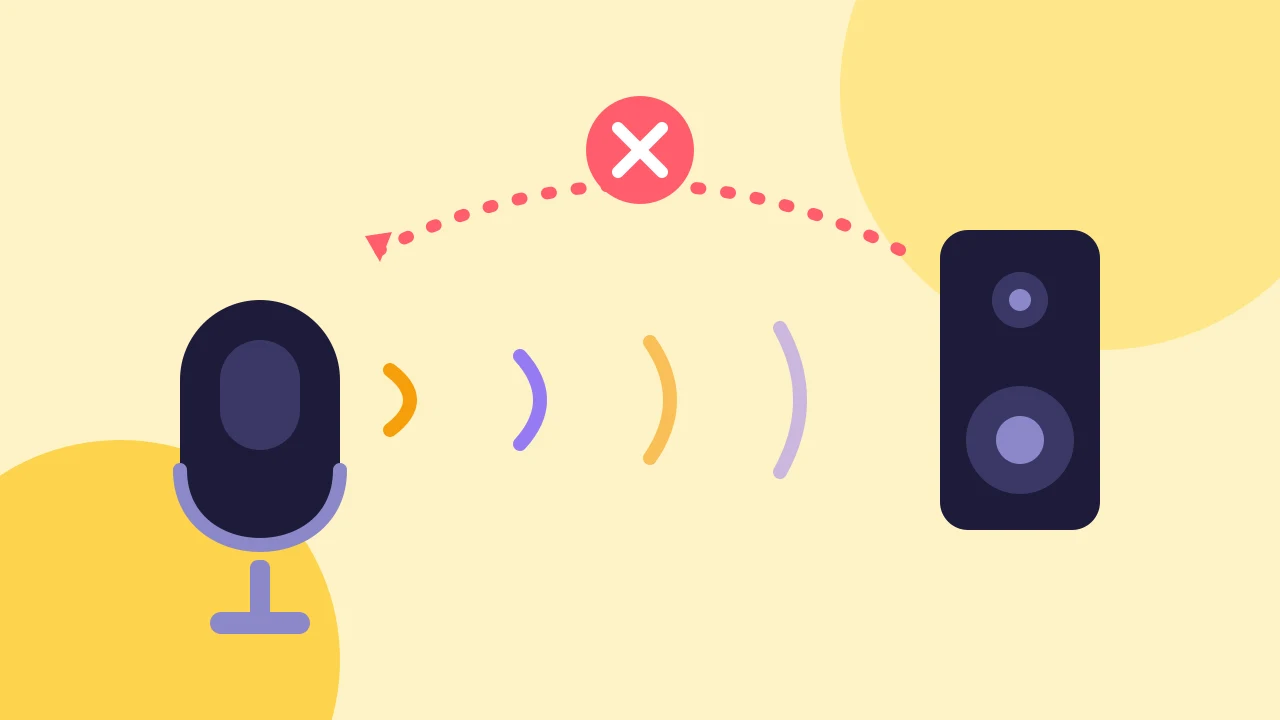
To fix echo on a live stream, find whose sound is looping back into a microphone, then break the loop at that point. In most cases, headphones solve it. This guide shows how to find the source quickly and what to change.
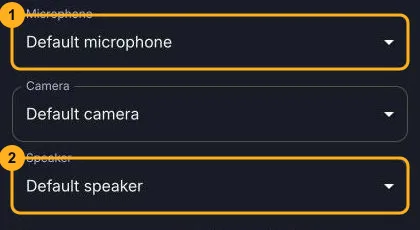
Open Settings in the device check or in the studio, and make sure the right Microphone and Speaker are selected. If you switch to a new headset, test it before you go live.
Audio Enhancement is on by default and reduces steady background noise. If you turn it off and choose Original sound, the studio warns that echo cancellation is off and tells you to use headphones.
Ask the person who heard the echo to listen while the others speak. In the studio, you do not hear your own microphone. If a guest still hears themselves, look for a loop through speakers, a second device or a shared tab, and repeat the mute test.
If sound is missing rather than repeated, read how to fix a camera or microphone that is not working. If a guest drops out, see what to do when a guest cannot connect. For the whole setup, start at how to live stream on YouTube with guests.
Going live
Share a tab, window or screen, turn on screen audio and avoid echo. Fix the common case where viewers hear nothing from the share.
Fixing problems
Fix a blocked or busy camera and microphone in Chrome, Edge or Safari. Read what each studio message means and allow access in the browser and your system.
Going live
Connect your channel, invite guests with one link and go live on YouTube from the browser. No guest accounts, no downloads and no watermark on the Free plan.