StreamEasyStudio
The studioHow it worksPricingQuestionsHelp
Help / Fixing problems

Fixing problems · 3 min read

Guest Cannot Connect to Your Live Stream? How to Fix It

Tell guest connection from YouTube delivery, check the basics, try another network and know when to run the show with fewer people on stage.
Reviewed 13 November 2026.

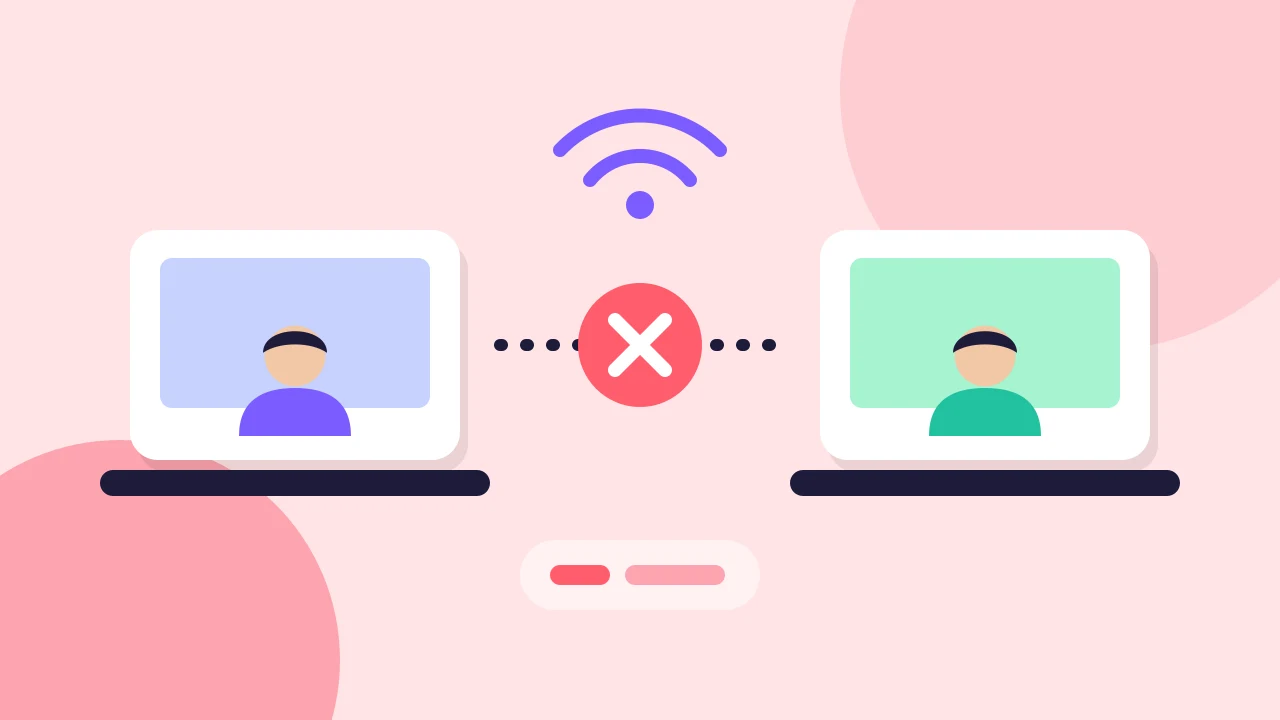
Flat illustration of two people linked by a dashed line with a broken link in the middle.
On this page
  1. Know What Is Failing
  2. Check the Basics First
  3. Try Another Network
  4. When Quality Is Poor but Connected
  5. Privacy and Public IP Addresses
  6. If Direct Connections Keep Failing

When a guest cannot connect to your live stream, the cause is usually the network. In a Free studio, the people on stage connect to each other directly, with no server in the middle. That keeps the studio free and private, but a strict network can stop a call from connecting. This guide helps you find which network is the problem and what to try first.

Know What Is Failing#

A show has two separate paths.

  • Guest connection. Each person on stage connects directly to each other person on stage. This is what fails when a guest cannot join the conversation.
  • YouTube delivery. The host's browser sends the finished show to YouTube, and viewers watch from YouTube.

A guest who cannot connect does not mean YouTube is down. A working YouTube stream does not mean every guest can connect. Fix them one at a time.

Check the Basics First#

  1. Ask the guest to open the invitation link again. If it says the invitation is invalid, expired or revoked, create a new one from Invite guests.
  2. Check the limits. A studio holds six people, with three on stage, host included. A full room or a replaced link turns a new guest away.
  3. Check the browser. Both people need a current Chrome, Edge or Safari, with camera and microphone allowed. If a permission is blocked, use this camera and microphone fix.

Try Another Network#

Work, school, hotel and some mobile networks block the path that direct calls use. The studio shows Network cannot connect directly when this happens. It can show Partly connected when only one pair of people is missing.
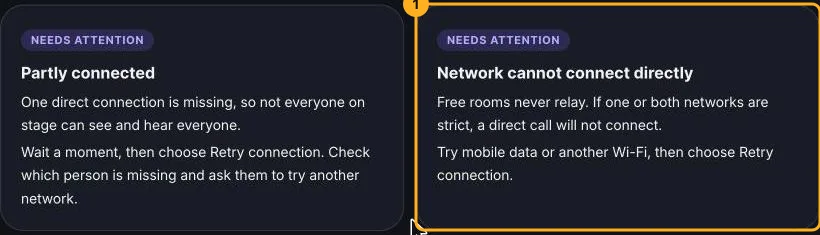
The Network cannot connect directly card on the Connection help page
Connection help explains the Network cannot connect directly message (1). Open it from the studio sidebar.
  1. Wait a moment, then choose Retry connection.
  2. Ask the person who is missing to switch networks, for example from office Wi-Fi to mobile data, and retry.
  3. If it still fails, open Wi-Fi diagnostics on the network that is failing. It checks the network and tells you what to try.
  4. If a smaller group connects, run the show with fewer people on stage.

A speed test cannot show that two particular guests can connect. Test with your guests, on the networks you plan to use, before you go live. The rehearsal guide shows how.

When Quality Is Poor but Connected#

Your device sends a separate copy of your audio and video to each person on stage. A slow upload or a busy computer lowers quality for everyone. Close other apps and tabs, move closer to the router, and ask guests on stage to turn their cameras off until it clears. What upload speed you need shows how to add up what your computer sends.

Privacy and Public IP Addresses#

A direct connection can show your public IP address to the people you are connected to. Invite only people you trust.

If Direct Connections Keep Failing#

A room keeps the connection method it was created with, so changing it needs a new studio. You can connect your own Cloudflare account on the Cloudflare page, then create a new stream. Cloudflare usage and any charges belong to your own account. Paid plans are not open during the beta, and no plan fixes every cause of a failed connection. See how billing works for the current status.

When the connection works, go back to how to live stream on YouTube with guests.

On this page

  1. Know What Is Failing
  2. Check the Basics First
  3. Try Another Network
  4. When Quality Is Poor but Connected
  5. Privacy and Public IP Addresses
  6. If Direct Connections Keep Failing

Related Articles

  • Flat illustration of an upload speed gauge with arrows going to a stage.

    Fixing problems

    What Upload Speed Do You Need to Live Stream With Guests?

    See what your computer sends to YouTube and to each guest, work out a worked example for 720p and 1080p, and choose settings that fit your connection.
    13 Nov 2026

  • Flat illustration of a webcam and microphone with a permission prompt.

    Fixing problems

    Camera or Microphone Not Working in Chrome: How to Fix It

    Fix a blocked or busy camera and microphone in Chrome, Edge or Safari. Read what each studio message means and allow access in the browser and your system.
    13 Nov 2026

  • Flat illustration of a host and two guests on a stage sending a live show to YouTube.

    Going live

    How to Live Stream on YouTube With Guests From Your Browser

    Connect your channel, invite guests with one link and go live on YouTube from the browser. No guest accounts, no downloads and no watermark on the Free plan.

    13 Nov 2026

Still stuck?

Contact us
StreamEasyStudio

A live studio made for your people. Go live on YouTube or record a conversation from your browser.

[email protected]

Product

  • The studio
  • How it works
  • Pricing
  • Questions
  • Help

Compare

  • StreamYard alternative
  • VDO.Ninja alternative
  • Free meeting recording
  • Free YouTube streaming

Company

  • Contact us
  • Support
  • Privacy Policy
  • Terms

© 2026 StreamEasyStudio. All rights reserved.

Beta · Made for creators who go live