Fixing problems
Guest Cannot Connect to Your Live Stream? How to Fix It
Tell guest connection from YouTube delivery, check the basics, try another network and know when to run the show with fewer people on stage.
Fixing problems · 2 min read
See what your computer sends to YouTube and to each guest, work out a worked example for 720p and 1080p, and choose settings that fit your connection.
There is no single upload speed that fits every 1080p live stream with guests, because your computer sends several things at once. This guide shows what the studio sends, so you can add it up for your own show. The numbers are calculated from the studio's own settings. They are not measured on your network.
In a Free studio, your computer sends two kinds of traffic.
People backstage do not send or receive call audio or video. These are top values. The studio steps video down when your connection struggles, and it waits for 30 percent spare capacity before it steps quality up again.
Take a host with two guests on stage, camera only.
| Part | 720p Show | 1080p Show |
|---|---|---|
| YouTube | 3.1 Mbps | 6.1 Mbps |
| Two guests at 1.54 Mbps each | 3.1 Mbps | 3.1 Mbps |
| Total upload at top quality | 6.2 Mbps | 9.2 Mbps |
If you also share a screen, add about 1.2 Mbps for each person on stage. Each guest sends about 3.1 Mbps in the same show, one copy to the host and one to the other guest. Plan for more than the total so the studio has room. Treat the table as a ceiling for planning, not a guarantee.
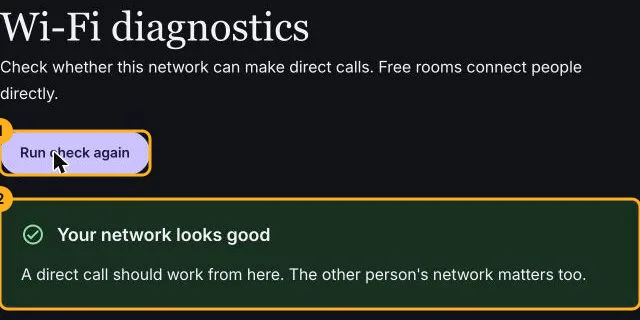
If the problem is a failed connection and not a slow one, read what to do when a guest cannot connect. When you are ready to build the show, follow how to live stream on YouTube with guests, and rehearse with a private test stream.
Fixing problems
Tell guest connection from YouTube delivery, check the basics, try another network and know when to run the show with fewer people on stage.
Going live
Rehearse with an Unlisted or Private event, check picture, sound and delay, then end the stream and create the real one.
Going live
Connect your channel, invite guests with one link and go live on YouTube from the browser. No guest accounts, no downloads and no watermark on the Free plan.