StreamEasyStudio
The studioHow it worksPricingQuestionsHelp
Help / Going live

Going live · 2 min read

How to Share Your Screen With Sound on a YouTube Live Stream

Share a tab, window or screen, turn on screen audio and avoid echo. Fix the common case where viewers hear nothing from the share.
Reviewed 13 November 2026.

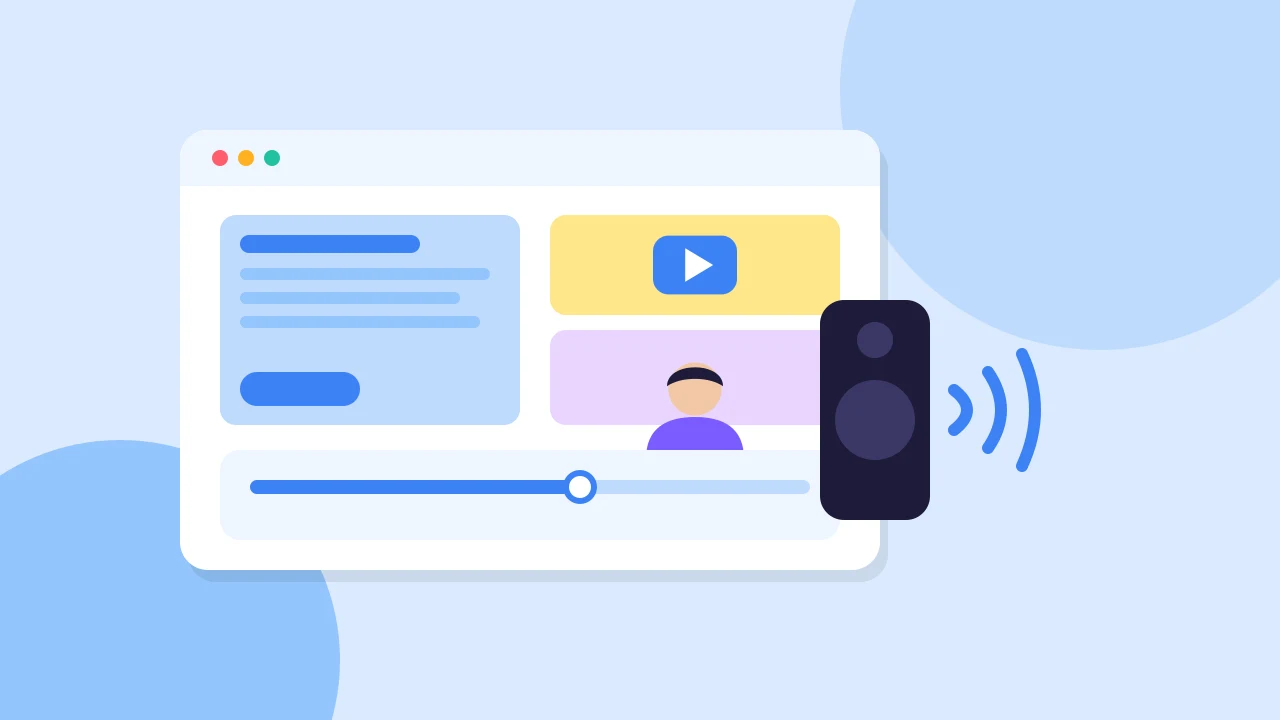
Flat illustration of a shared screen with a speaker icon and sound waves.
On this page
  1. Share Your Screen
  2. Turn On Screen Audio
  3. Avoid Echo While Sharing
  4. Choose Motion or Sharp Text
  5. Check What Viewers Hear

To share your screen with sound on a YouTube live stream, you share a tab, window or screen, and then turn on Include screen audio in the studio. If viewers hear nothing, the share usually carries no audio. This guide shows how to fix that and how to avoid echo.

Share Your Screen#

  1. Put yourself on stage first. Share screen stays unavailable until you are on stage.
  2. Choose Share screen. Your browser asks what to share: a tab, a window or the whole screen. You can share one thing at a time.
  3. Choose a layout that shows the share, such as Screen only or Screen with people. The studio tells you when the share is not in the show yet.

Sharing works in desktop Chrome, Edge or Firefox. If you have not set up the show yet, start with how to live stream on YouTube with guests.

The Share screen button in the studio toolbar
Share screen (1) is unavailable until you are on the stage.

Turn On Screen Audio#

While you share, the screen panel shows Include screen audio. Turn it on, and the studio plays the shared sound on air once.

The switch is unavailable when the share has no audio. In that case, the studio says to choose a tab with Share tab audio, or a screen on a system that offers audio. In your browser's picker, choose a tab and tick the audio option. Sharing a tab is the most reliable way to get sound.

Avoid Echo While Sharing#

  • Use headphones. Sound from a whole screen or window can include the conversation you are hearing, so guests hear themselves.
  • Share one tab with its audio. This keeps the conversation out of the shared sound.
  • Do not share the studio tab. The preview can show itself, and the conversation can echo. Share a different tab or window.

For a full checklist, read how to fix echo on a live stream with guests.

Choose Motion or Sharp Text#

Prefer smooth motion over sharp text suits video and animation. Leave it off for slides and documents.

Check What Viewers Hear#

The studio cannot tell you what a viewer hears on YouTube. Do a short Unlisted rehearsal, and listen on the watch page with your own microphone muted. Playing a delayed watch page next to an open microphone causes a late echo. The full routine is in how to test a YouTube live stream without making it public.

On this page

  1. Share Your Screen
  2. Turn On Screen Audio
  3. Avoid Echo While Sharing
  4. Choose Motion or Sharp Text
  5. Check What Viewers Hear

Related Articles

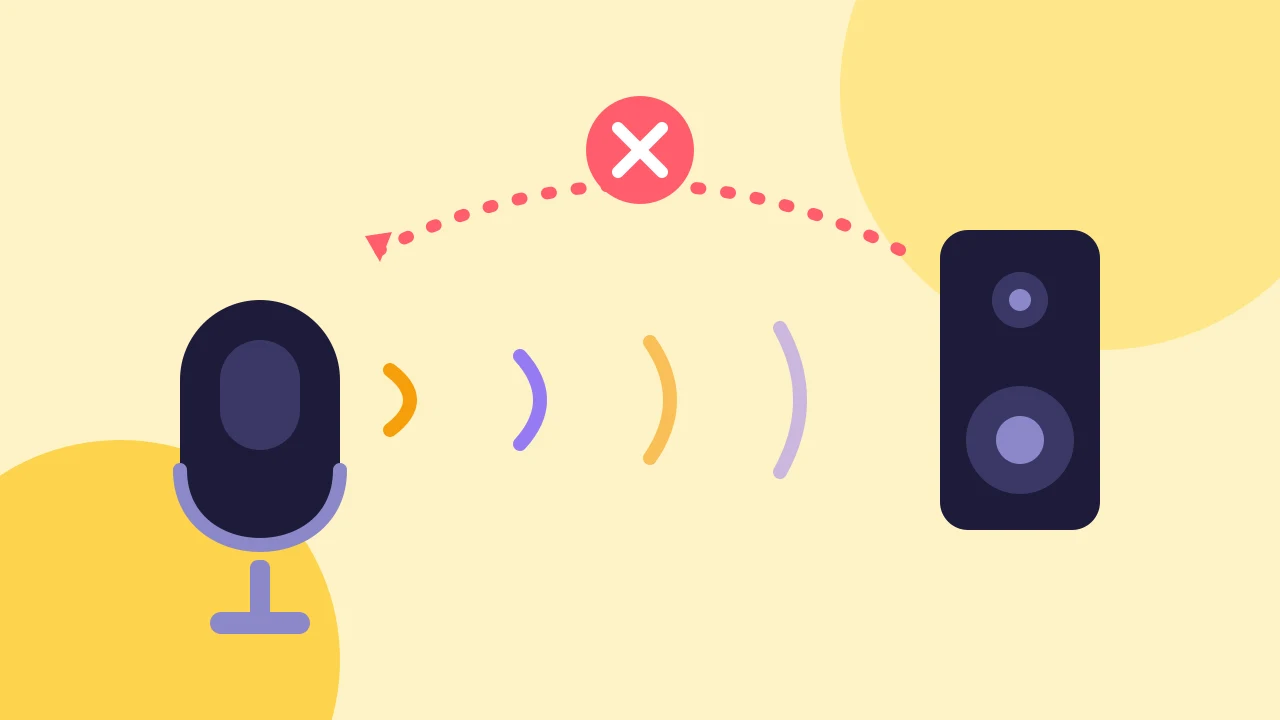
  • Flat illustration of a headset, a speaker and sound waves looping back into a microphone.

    Fixing problems

    How to Fix Echo on a Live Stream With Guests

    Find which microphone is picking up the loop, then fix it with headphones, one device per room and the right share settings.
    13 Nov 2026

  • Flat illustration of a play button with a lock, marking a private test stream.

    Going live

    How to Test a YouTube Live Stream Without Making It Public

    Rehearse with an Unlisted or Private event, check picture, sound and delay, then end the stream and create the real one.
    13 Nov 2026

  • Flat illustration of a host and two guests on a stage sending a live show to YouTube.

    Going live

    How to Live Stream on YouTube With Guests From Your Browser

    Connect your channel, invite guests with one link and go live on YouTube from the browser. No guest accounts, no downloads and no watermark on the Free plan.

    13 Nov 2026

Still stuck?

Contact us
StreamEasyStudio

A live studio made for your people. Go live on YouTube or record a conversation from your browser.

[email protected]

Product

  • The studio
  • How it works
  • Pricing
  • Questions
  • Help

Compare

  • StreamYard alternative
  • VDO.Ninja alternative
  • Free meeting recording
  • Free YouTube streaming

Company

  • Contact us
  • Support
  • Privacy Policy
  • Terms

© 2026 StreamEasyStudio. All rights reserved.

Beta · Made for creators who go live