StreamEasyStudio
The studioHow it worksPricingQuestionsHelp
Help / Going live

Going live · 3 min read

How to Schedule a YouTube Live Stream and Share the Link in Advance

Create a scheduled event, copy the YouTube watch link to share and open the same stream when it is time to go live.
Reviewed 13 November 2026.

Flat illustration of a calendar, a clock and a play button.
On this page
  1. Before You Start
  2. Create the Scheduled Event
  3. Find the Watch Link to Share
  4. Keep the Invitation Link for Guests Only
  5. What to Do When It Is Time
  6. Cancel or Change the Event

To schedule a YouTube live stream, you create the stream with Schedule for later and a start time. YouTube then gives you an upcoming watch page that you can share right away. Nothing starts by itself. When the time comes, you open the stream and go live yourself.

Before You Start#

  • Connect your YouTube channel on the YouTube page of the studio. Connecting does not start a broadcast.
  • Your channel needs live streaming enabled. YouTube says first-time activation can take up to 24 hours, so do this well before your first show.
  • Use desktop Chrome or Edge to host.

New to the studio? Read how to live stream on YouTube with guests first.
Create the Scheduled Event#

  1. On Home, choose Live stream and enter a stream title. It appears in your stream list and on YouTube.
  2. Tick Set up on YouTube. Description, Visibility, Schedule and thumbnail appear.
  3. Pick a Visibility. Unlisted means anyone with the link can watch and share it, which suits a private audience.
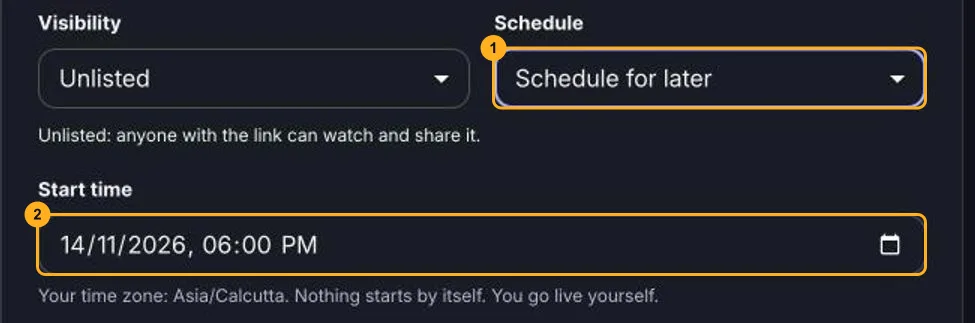
  4. Set Schedule to Schedule for later, and choose a start time. The form shows your time zone.
  5. Choose 720p or 1080p. You cannot change the resolution after you create the stream.
  6. Answer the made for kids question, then choose Continue to device check.
Schedule for later selected, with the start time field below it
Choose Schedule for later (1), then set the start time (2) in your own time zone. The form says nothing starts by itself.
Note

Creating the stream makes your studio entry and the YouTube event. It does not start a live broadcast. Nothing starts until you enter the studio and go live.

Find the Watch Link to Share#

Viewers need the YouTube watch link. Guests need the studio invitation link. They are two different links.

  1. Open the stream from Home with Open stream, check your devices and choose Enter studio.
  2. In the studio header, the YouTube event text under the stream title is a link to the watch page. Open it, then copy the address from your browser.
Studio header with the YouTube event link under the stream title
The YouTube event link (1) opens the watch page of this stream.

For a scheduled Unlisted event, the watch page shows a countdown to the start time, the title and the word Unlisted.
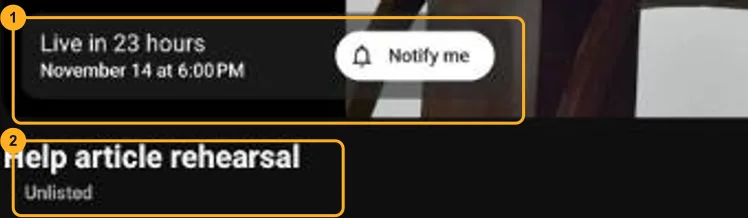
YouTube watch page showing Live in 23 hours, the title and Unlisted
YouTube shows the start time (1) and the visibility (2).

Keep the Invitation Link for Guests Only#

The studio invitation link is for people who join the conversation. It opens the studio as a guest, so share it only with your guests. If it reaches the wrong person, use Replace invitation link or Revoke invitation in the Invite guests window. Viewers only need the watch link.

What to Do When It Is Time#

Your scheduled streams stay under Active on Home. Each entry shows the scheduled time, with Edit, Cancel event, Open stream and Delete.

Home stream list with a scheduled stream, its time and the Open stream button
The scheduled time (1) sits on the entry. Open stream (2) takes you to the device check.
  1. Choose Open stream, check your devices and enter the studio.
  2. Invite your guests with the invitation link and set up the stage.
  3. Choose Start sending, then go live from the studio. Use the same stream, so viewers who opened the watch link are already in the right place.

Streams that sit unused stop after a period of no activity that you can change in Preferences, so open the stream close to the start time. Rehearse first with an Unlisted stream that you do not share. If a guest has trouble joining on the day, read what to do when a guest cannot connect.

Cancel or Change the Event#

Cancel event deletes the event from YouTube, and its watch link stops working. Your studio stays on Home. If you already shared the link, tell people before you cancel.

On this page

  1. Before You Start
  2. Create the Scheduled Event
  3. Find the Watch Link to Share
  4. Keep the Invitation Link for Guests Only
  5. What to Do When It Is Time
  6. Cancel or Change the Event

Related Articles

  • Flat illustration of a play button with a lock, marking a private test stream.

    Going live

    How to Test a YouTube Live Stream Without Making It Public

    Rehearse with an Unlisted or Private event, check picture, sound and delay, then end the stream and create the real one.
    13 Nov 2026

  • Flat illustration of a host and two guests on a stage sending a live show to YouTube.

    Going live

    How to Live Stream on YouTube With Guests From Your Browser

    Connect your channel, invite guests with one link and go live on YouTube from the browser. No guest accounts, no downloads and no watermark on the Free plan.
    13 Nov 2026

  • Flat illustration of two people linked by a dashed line with a broken link in the middle.

    Fixing problems

    Guest Cannot Connect to Your Live Stream? How to Fix It

    Tell guest connection from YouTube delivery, check the basics, try another network and know when to run the show with fewer people on stage.

    13 Nov 2026

Still stuck?

Contact us
StreamEasyStudio

A live studio made for your people. Go live on YouTube or record a conversation from your browser.

[email protected]

Product

  • The studio
  • How it works
  • Pricing
  • Questions
  • Help

Compare

  • StreamYard alternative
  • VDO.Ninja alternative
  • Free meeting recording
  • Free YouTube streaming

Company

  • Contact us
  • Support
  • Privacy Policy
  • Terms

© 2026 StreamEasyStudio. All rights reserved.

Beta · Made for creators who go live