Going live
How to Live Stream on YouTube With Guests From Your Browser
Connect your channel, invite guests with one link and go live on YouTube from the browser. No guest accounts, no downloads and no watermark on the Free plan.
Going live · 3 min read
Create a recording studio, invite guests and save MP4 files to a folder on your own computer. Nothing is broadcast and nothing is uploaded.
To record a video podcast with remote guests, you create a recording studio. It records your conversation to a folder on your own computer, so nothing is broadcast and nothing is uploaded. You end up with MP4 files that play in any video player.
You pick a recording or a live stream when you create the studio, and you cannot change it later. A studio does one or the other.
Recording works in desktop Chrome or Edge. If you want to go live instead, read how to live stream on YouTube with guests.
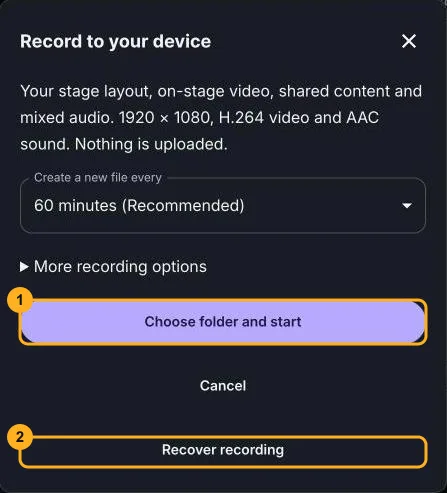

The recording holds your stage layout, the on-stage video, shared content and the mixed audio. It is 1920 by 1080, with H.264 video and AAC sound.
It is one mixed picture and one mixed sound. It is not a separate track for each guest, and there is no cloud copy. The recording is made on your computer from what you see on stage, so a guest whose connection drops is missing from the file for that time. If this keeps happening, read what to do when a guest cannot connect.
Open the folder you chose. The studio saves MP4 parts, one for each time period you picked. Open them in any video player. Check the start, the middle and the end before you rely on them.
The studio keeps the footage saved before the problem, so do not delete the folder. Choose Record, then Recover recording, open the folder, and let the studio prepare a playable MP4 from the unfinished parts.
A recording can stop when the disk is full, when the studio tab is closed or reloaded, or when the browser stops it. For clean sound, wear headphones and read how to fix echo on a live stream. Before a long session, run a short test and check your camera and microphone.
Going live
Connect your channel, invite guests with one link and go live on YouTube from the browser. No guest accounts, no downloads and no watermark on the Free plan.
Fixing problems
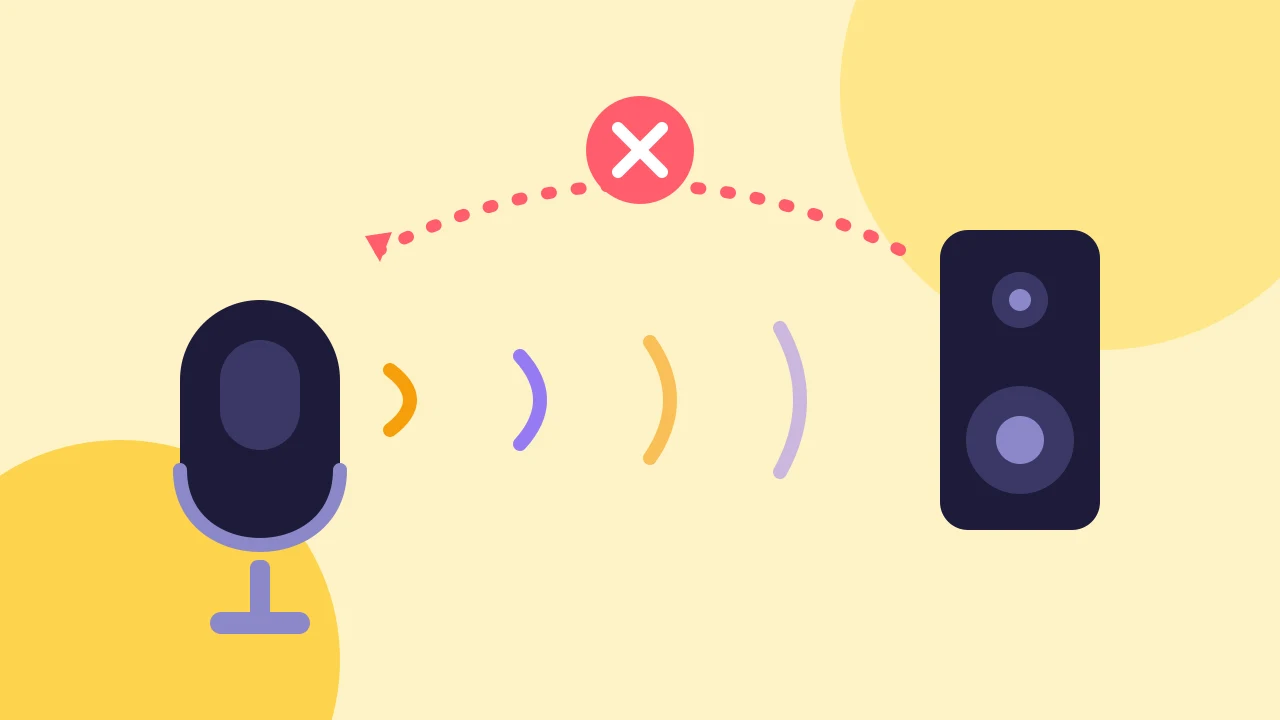
Find which microphone is picking up the loop, then fix it with headphones, one device per room and the right share settings.
Fixing problems
Tell guest connection from YouTube delivery, check the basics, try another network and know when to run the show with fewer people on stage.